
Common Use Cases
1. Preferred Return and Return of Capital
Use a split distribution when investors are entitled to both a preferred return and a return of a portion of their contributed capital during the same distribution period.
Example: $10,000 Total Distribution
| Distribution Type | Amount |
| Preferred Return | $4,000 |
| Return of Capital | $6,000 |
| Total | $10,000 |
The investor receives a single payment of $10,000, with each component recorded under its respective distribution type. Only the $6,000 allocated to Return of Capital reduces the investor's outstanding capital balance.
2. Retained Earnings and Return of Capital
Use this option when a portion of the earnings is retained rather than paid out, while another portion is distributed to investors as a return of capital.
Example: $15,000 Total Distribution
| Distribution Type | Amount |
| Retained Earnings | $5,000 |
| Return of Capital | $10,000 |
| Total | $15,000 |
Each component is recorded separately, providing a clear record of the amounts retained and distributed. Distribution details can also be exported to Excel for further review and reporting.
Step-by-Step Instructions
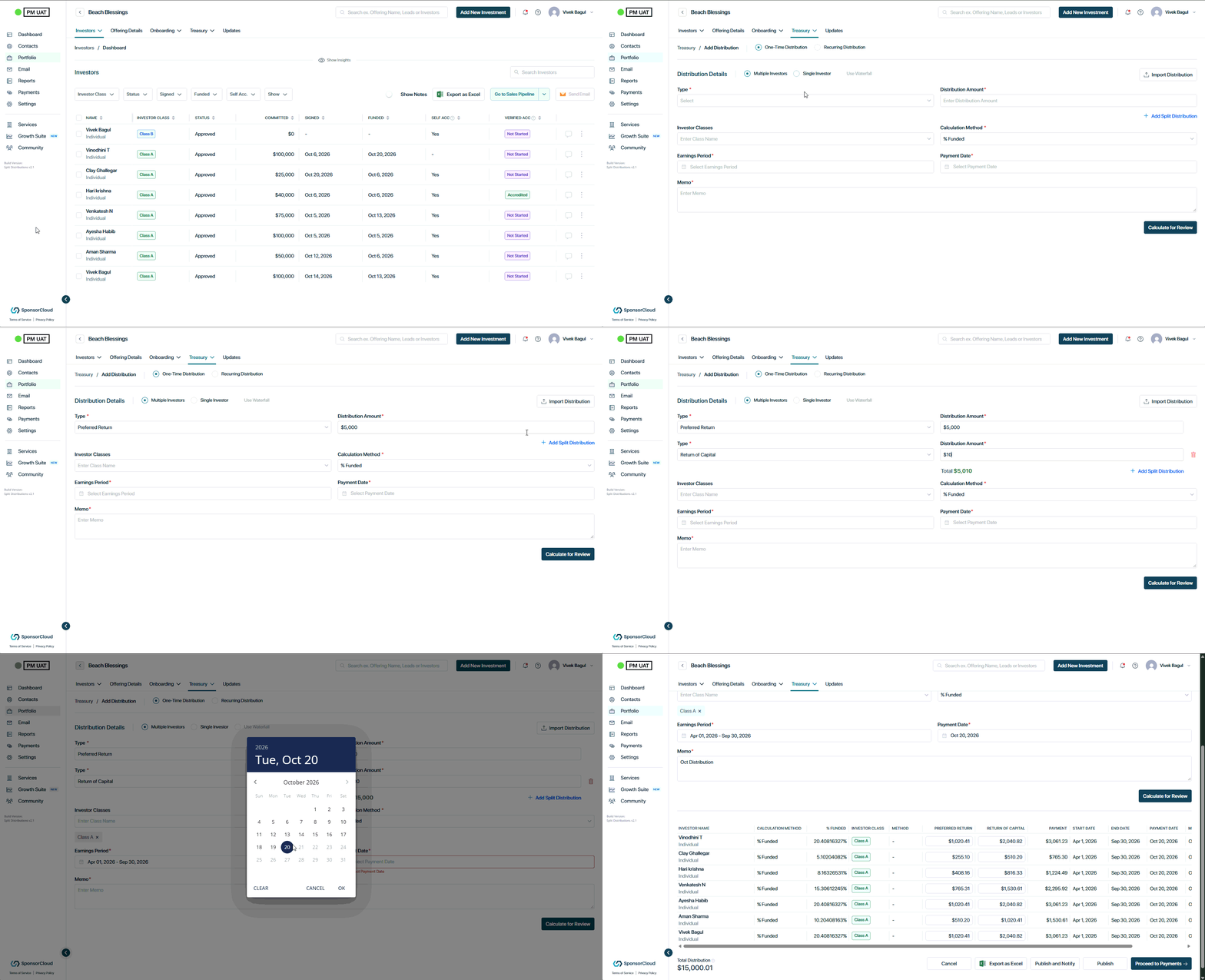
Option A: Create and Calculate Split Distributions Through the Platform
1. Navigate to Add Distribution: Go to Portfolio → Select the Offering → Treasury → Add Distribution.
2. Add Distribution Types: Select the first distribution type and enter the amount. Click Add Split Distribution to add additional types and amounts as needed.
3. Select Investor Classes: Choose one or multiple investor classes eligible for the distribution.
4. Choose the Calculation Method: Select Funded Percentage or Ownership Percentage. If using Ownership Percentage, ensure the percentages are populated in the offering’s Cap table (Treasury > Cap Table); otherwise, allocations may calculate as 0%.
5. Enter Distribution Details: Specify the Earning Period (date range) and Payment Date, then add a memo (e.g., October 2026 Distribution).
6. Calculate and Review: Verify the total distribution amount, then click Calculate. Review the distribution components and investor allocations for accuracy before proceeding.
Split Distribution Calculation Preview
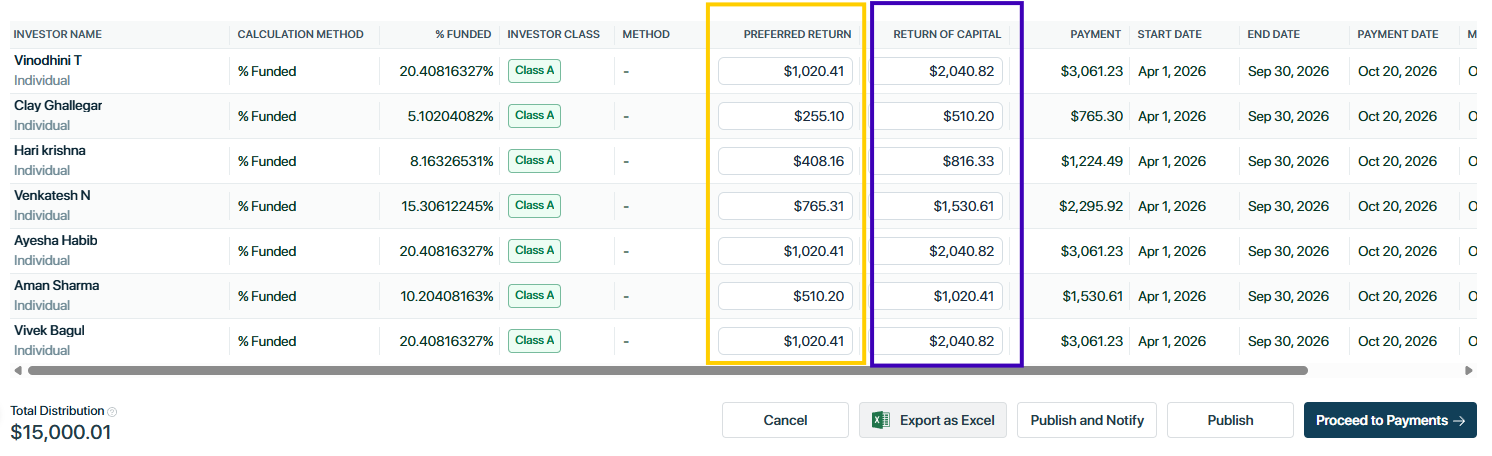
7. Publish or Proceed to Payments: Choose one of the following options:
-
-
Publish: Saves and publishes the distribution without notifying investors.
-
Publish and Notify: Saves and publishes the distribution and emails notifications to investors.
-
Proceed to Payments: Continues to the payment workflow to process payments through the platform.
-
Alternatively, you can export the distribution details to Excel for review or to facilitate payments through your bank.
💡 You can add multiple distribution types to the same distribution. However, the same distribution type cannot be added more than once within a single split distribution.
Option 2: Import Split Distributions Using a Spreadsheet
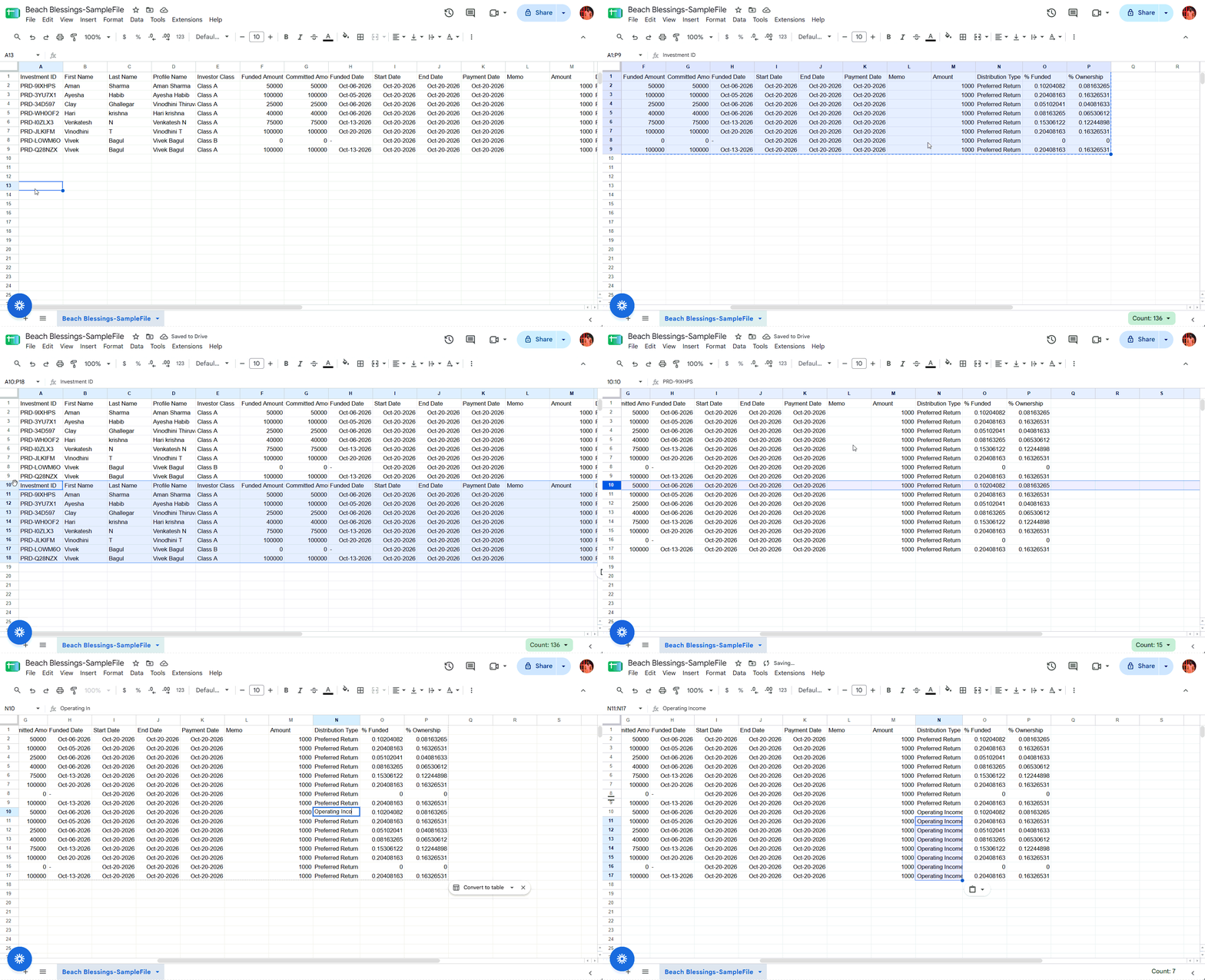
1. Download the Sample Spreadsheet: Go to Portfolio → select the offering → Treasury → Add Distribution → Import Distribution. Click Download Sample file to download the sample distribution spreadsheet.
2. Keep Data Unchanged: The spreadsheet contains columns A–P. Columns A–H and O–P contain Pre-filled, non-editable data. Do not modify these columns, as changes may prevent the spreadsheet from uploading successfully.
3. Complete the Required Fields: Enter the start date and end date (earning period), payment date, memo, distribution types, and distribution amounts for each investor in the editable columns.
4. Add Rows for Split Distributions: By default, the spreadsheet contains one row per Investment. To assign multiple distribution types to the same investor, copy and duplicate that investor’s row for each distribution type. Enter the corresponding distribution type and amount in each row. Do not modify any columns other than those specified as editable.
5. Save and Upload: Save the completed spreadsheet as a CSV file and upload it. The system will display a preview of the split distributions for review.
6. Publish or Proceed to Payments: After reviewing the preview, choose to publish the distribution, publish and notify investors, or proceed to payments through the platform, following the same workflow as Option A. Alternatively, export the distribution to Excel for review or to facilitate payments through your bank.
👤 For questions or help with the process, email us at success@sponsorcloud.io or Schedule a meeting. An experienced Customer Success Manager will reach out to assist you.