
The Offerings Page is a dedicated, ready-to-share page that showcases your active, managed, and past offerings. It can be shared directly with investors and prospects or embedded into your website. The page stays automatically synced with your SponsorCloud portal, ensuring the information displayed is always up to date.
Steps to Set Up an Offerings Page
You can access the Offerings Page by navigating to Settings > Offerings Page.
The Offerings Page is comprised of three sections:
-
Appearance settings
-
Widget preview
-
Sharing options
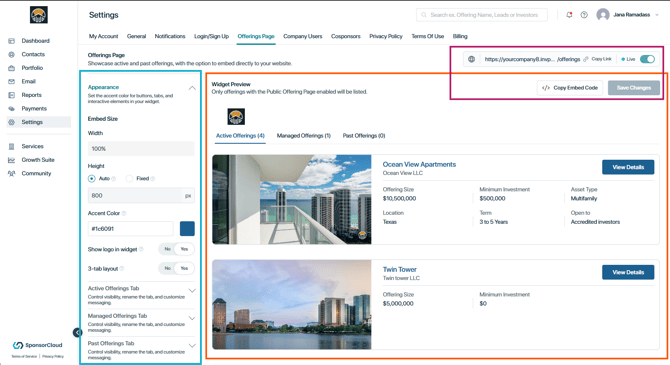
Appearance Settings
Within Appearance Settings, you can control how your Offerings Page should look and how offerings are organized.
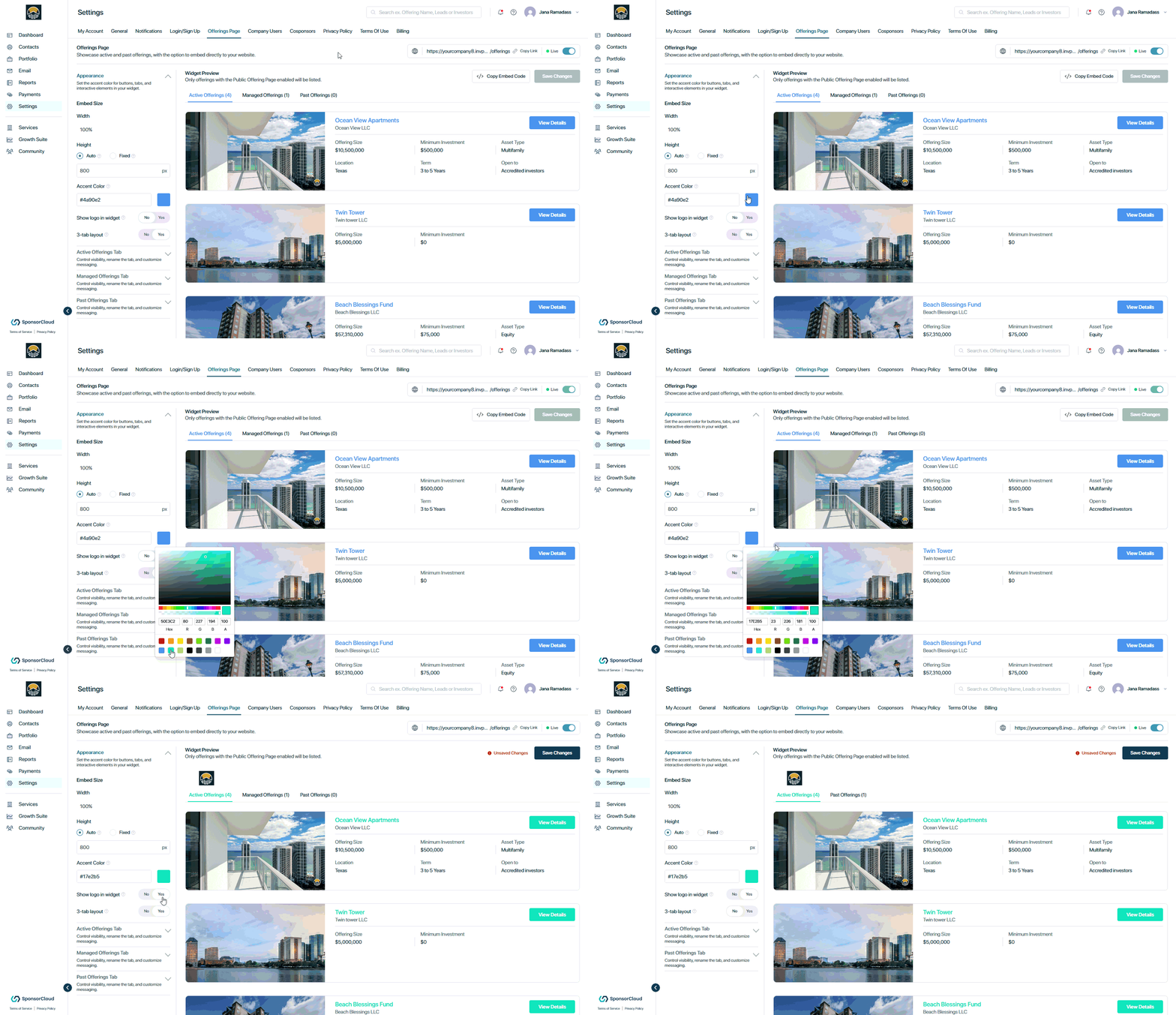
You can customize:
-
Embed Size – Control the height of the Offerings Page when it is embedded on your website:
- Auto – Automatically adjusts the widget height based on the amount of content displayed, helping prevent unnecessary empty space or scrolling.
- Fixed – Sets the widget to a specific height that you define. Visitors may need to scroll within the widget if the content exceeds the selected height.
- Accent Color – Customize the Accent color to match your branding
- Show Logo – Choose whether your company logo appears in the widget.
-
3-Tab Layout – Choose how your offerings are organized:
- 3-Tab Layout – Displays offerings across three tabs based on status: Active, Managed, and Past.

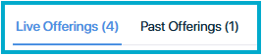
- 2-Tab Layout – Consolidates Managed and Past offerings into a single tab, resulting in two tabs: Active and Past.
- Offering Tabs – Show or hide the different tabs, rename the title, and customize the message displayed when no offerings are available.
Widget Preview
The Widget Preview shows how your Offerings Page will appear to visitors as you make changes.
Use the preview to review:
- Your selected appearance
- Offering tabs (Two-tab or three-tab layout)
- Offering information
- Logo and accent color
You can also switch between the tabs in the preview to see how each section will appear.
Note: Only offerings with the Public Landing Page toggle enabled appear on the Offerings Page. If an offering is missing, go to Portfolio > select the offering > Offering Details and enable Public Landing Page.
Visitors can click View Details to open the individual offering's public page.
Sharing Options
Once your Offerings Page is ready, you can share it in two ways.
-
Share the Public Link
-
Embed on Your Website
Steps to share the public Link
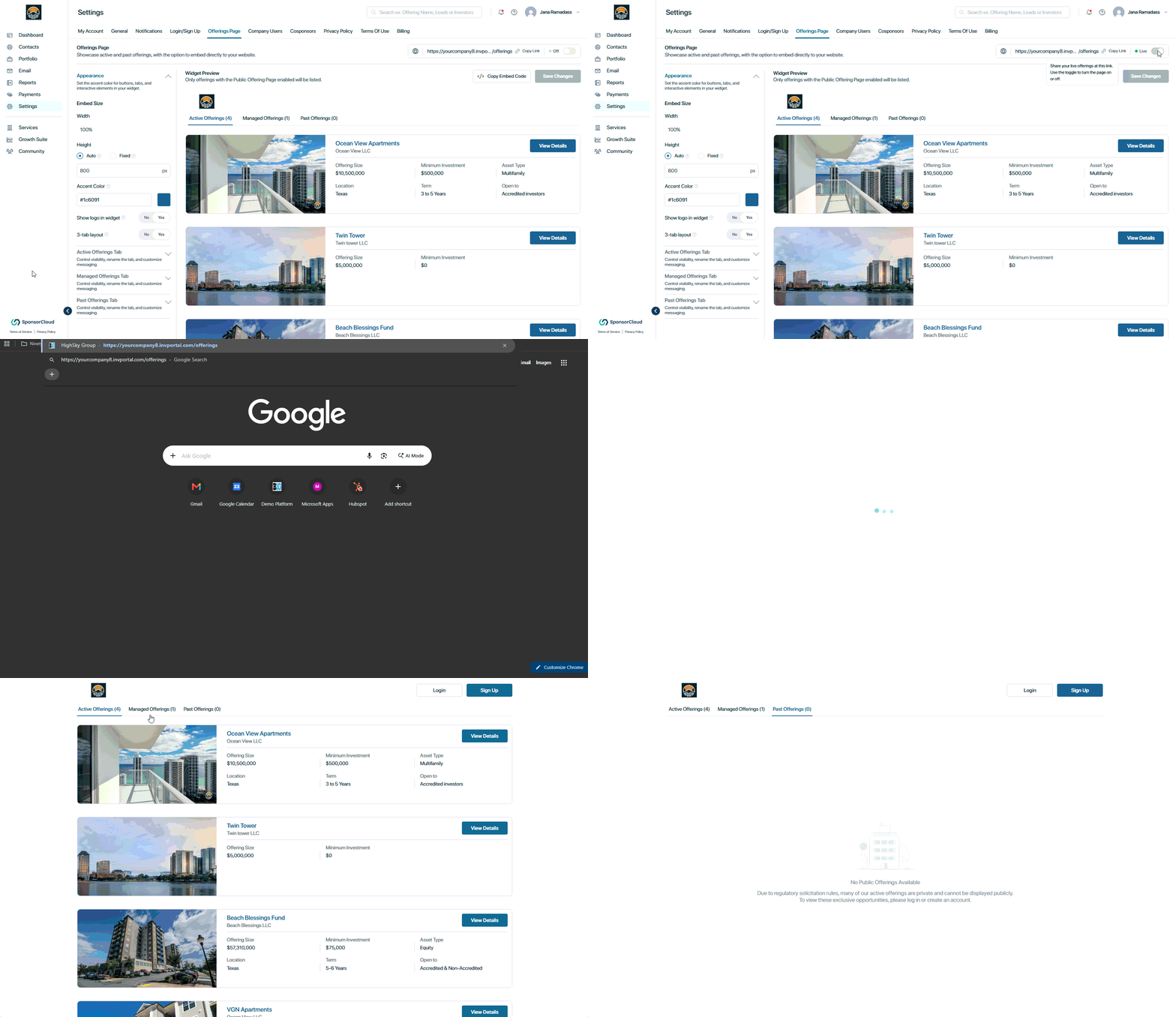
1. Turn on the Offerings Page URL and click Copy Link URL.
You can share this link through your website, email, social media, or other investor communications.
Steps to Embed on Your Website
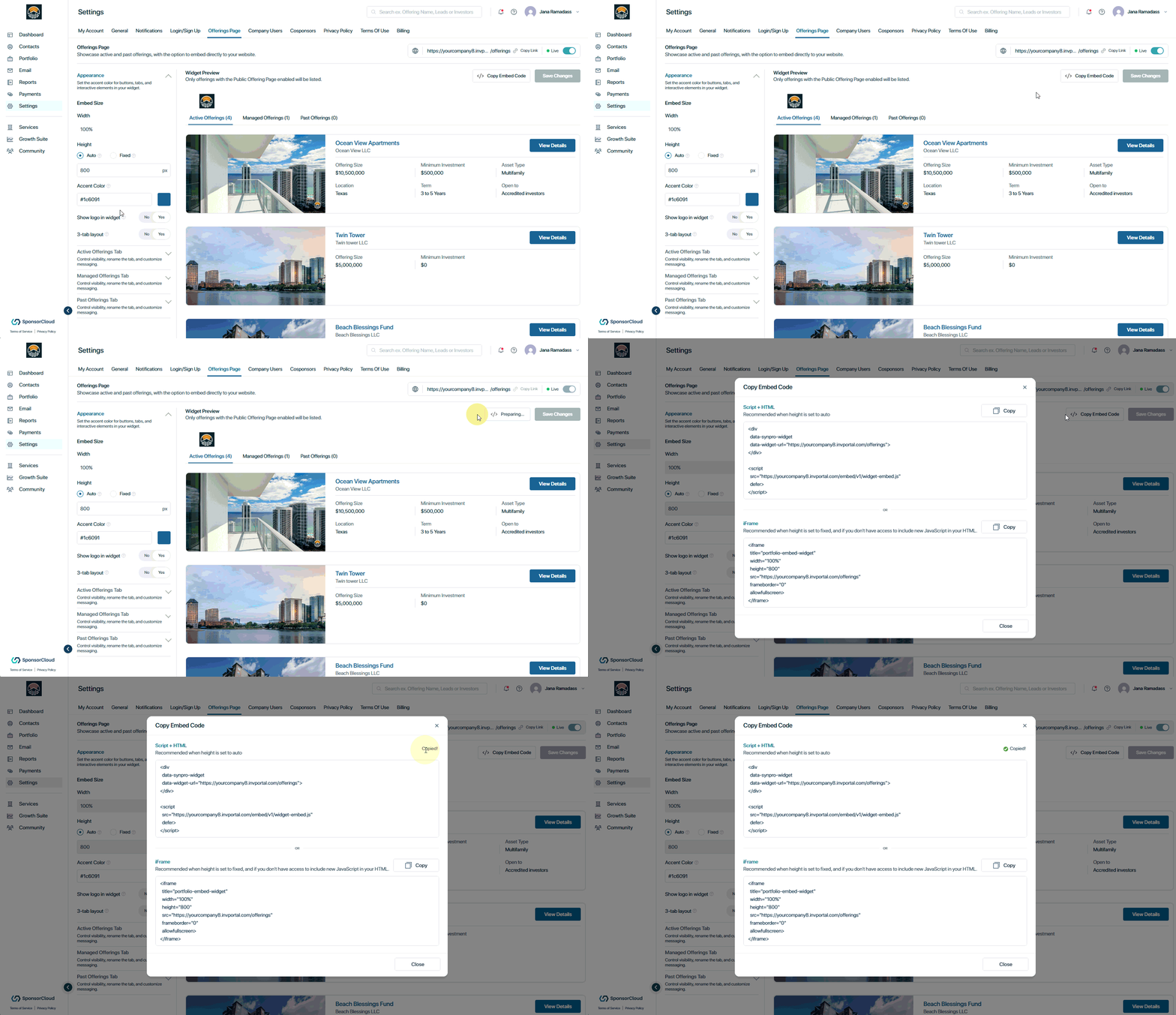
Click Copy Embed Code to add the Offerings Page directly to your website.
Choose between:
- Script + HTML – Recommended when using Auto height.
- iframe – Recommended for Fixed height or websites that do not support custom JavaScript.
Copy the code and add it to the desired section of your website.
Good to Know
- Only offerings with Public Landing Page toggle enabled are displayed.
- Archived offerings do not appear on the Public Page.
- Saved changes reflect immediately on the public page and embedded widget.
- Offerings Page settings do not affect the behaviour of the Invest page of the investor portal
- Turning off the Offerings Page URL makes the public link unavailable.
👤 For questions or help with the process, email us at success@sponsorcloud.io or Schedule a meeting. An experienced Customer Success Manager will reach out to assist you.